关键字:directx 11怎么安装 directx11安装方法
|
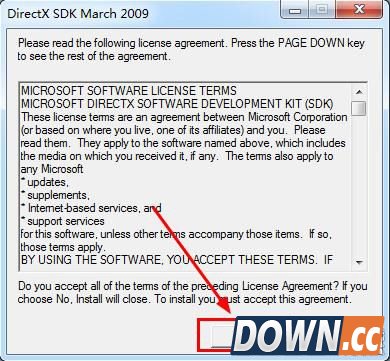
DirectX 11是由微软公司创建的多媒体编程接口,软件由C++编程语言实现,并遵循COM,该软件可以有效提升游戏体验。但是很多玩家可能还不知道directx 11怎么安装,今天小编就给大家带来directx 11安装方法,希望大家能够喜欢。 directx11安装教程: 1、下载解压并得到安装文件. 2、点击安装文件,在弹出的窗口中点击“Yes”.
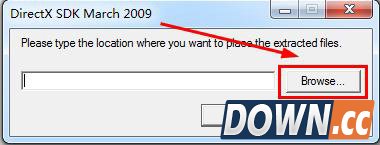
3、点击“Browse”.
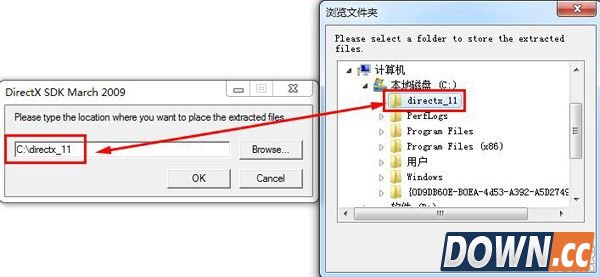
4、选择文件释放路径,比如下图所示路径.
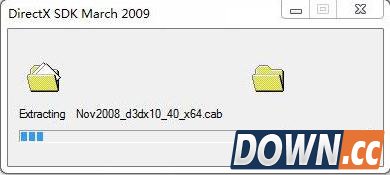
5、选择完成后点击“OK”,然后等待释放完成.
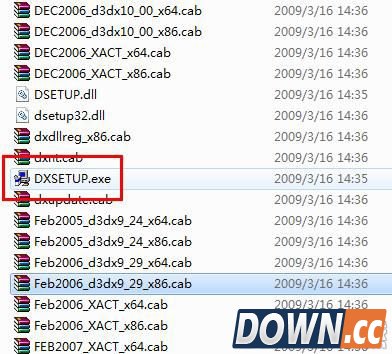
6、打开文件释放的文件夹,找到“DXSETUP.exe”文件.
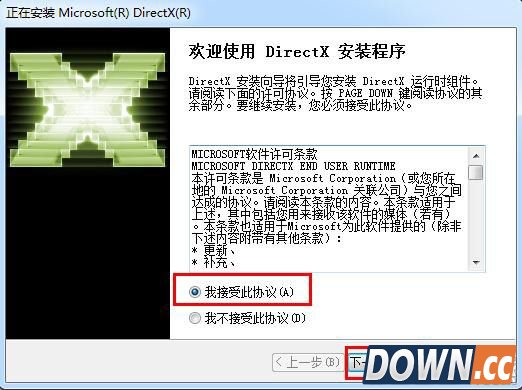
7、双击“DXSETUP.exe”打开directx 11安装程序. 8、勾选“我接受此协议”,然后点击“下一步”.
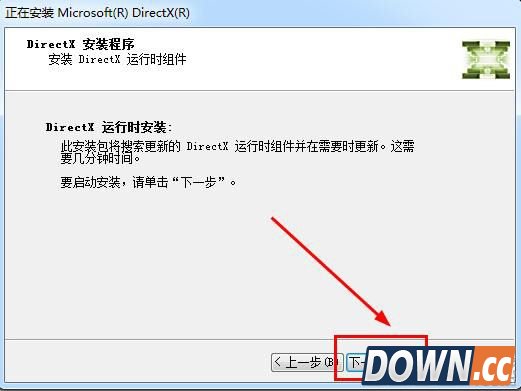
9、点击“下一步”.
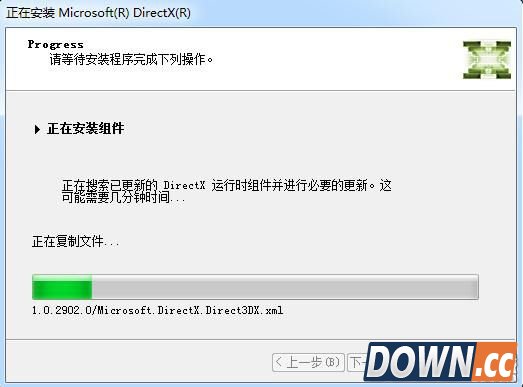
10、点击“下一步”进入安装过程,安装需要一会时间,耐心等待即可.
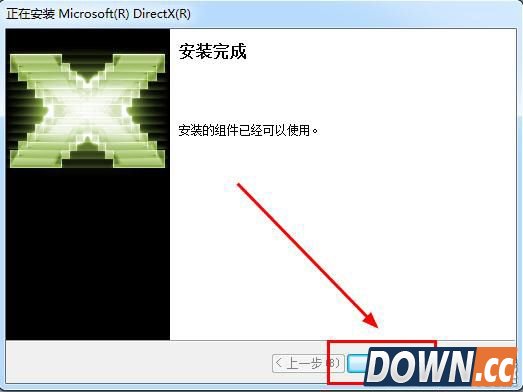
11、安装完成,点击“完成”即可.
以上便是小编推荐的关于directx 11安装教程,还不会安装的玩家赶紧过来看看,只有安装了directx 11才能更加舒畅的体验游戏的快感。 |
推荐新闻


小编推荐软件专题
推荐内容
- 英雄联盟3.0版本更新内容有什么 更新内容具体介绍(2022-01-19 17:12:14)
- 哈利波特魔法觉醒圣诞打卡景点在哪 圣诞打卡景点位置介绍(2021-12-24 13:52:17)
- 哈利波特魔法觉醒其它学院休息室怎么进(2021-09-14 09:31:17)
- 哈利波特魔法觉醒卡牌培养哪个好 最值得培养的卡牌选择推荐(2021-09-10 09:11:55)
- 诺弗兰物语厄运沙包配方是什么 厄运沙包制作方法介绍(2021-09-04 16:40:43)
- 灵魂潮汐1-2迷失森林怎么过 1-2迷失森林100%探索通关流程(2021-08-26 15:26:53)
- 英雄联盟选手uzi因糖尿病退役 uzi6月3日正式退役(2020-06-03 18:20:55)
- 剑侠情缘一笑倾人城 同伴虞姬全面剖析(2017-09-13 12:51:39)
- 奇迹暖暖第十五章将更新 过关套制作方法(2017-06-02 18:27:47)
- 奇迹暖暖野餐进行时第一天需注意的问题(2017-05-27 13:13:57)
相关内容
热点内容


